Account restrictions
Telegram SpamBot appeals
The SpamBot tab shows an account’s last restriction check and current appeal case. The Appeals dashboard shows case activity and outcomes across accounts.
Check an account and submit an appeal
Open an account in Accounts and select SpamBot. Use Check status to refresh the restriction result. The restriction result and the appeal processing status appear separately. The account uses its assigned proxy if it has one, or connects directly otherwise.
- If the account is restricted and has no active case, enter appeal text and factual account information you are authorized to share.
- Select Send appeal, then Confirm and send to queue the case. Follow its timeline on the same tab. Telegram determines the outcome.
Prepare appeals for selected accounts
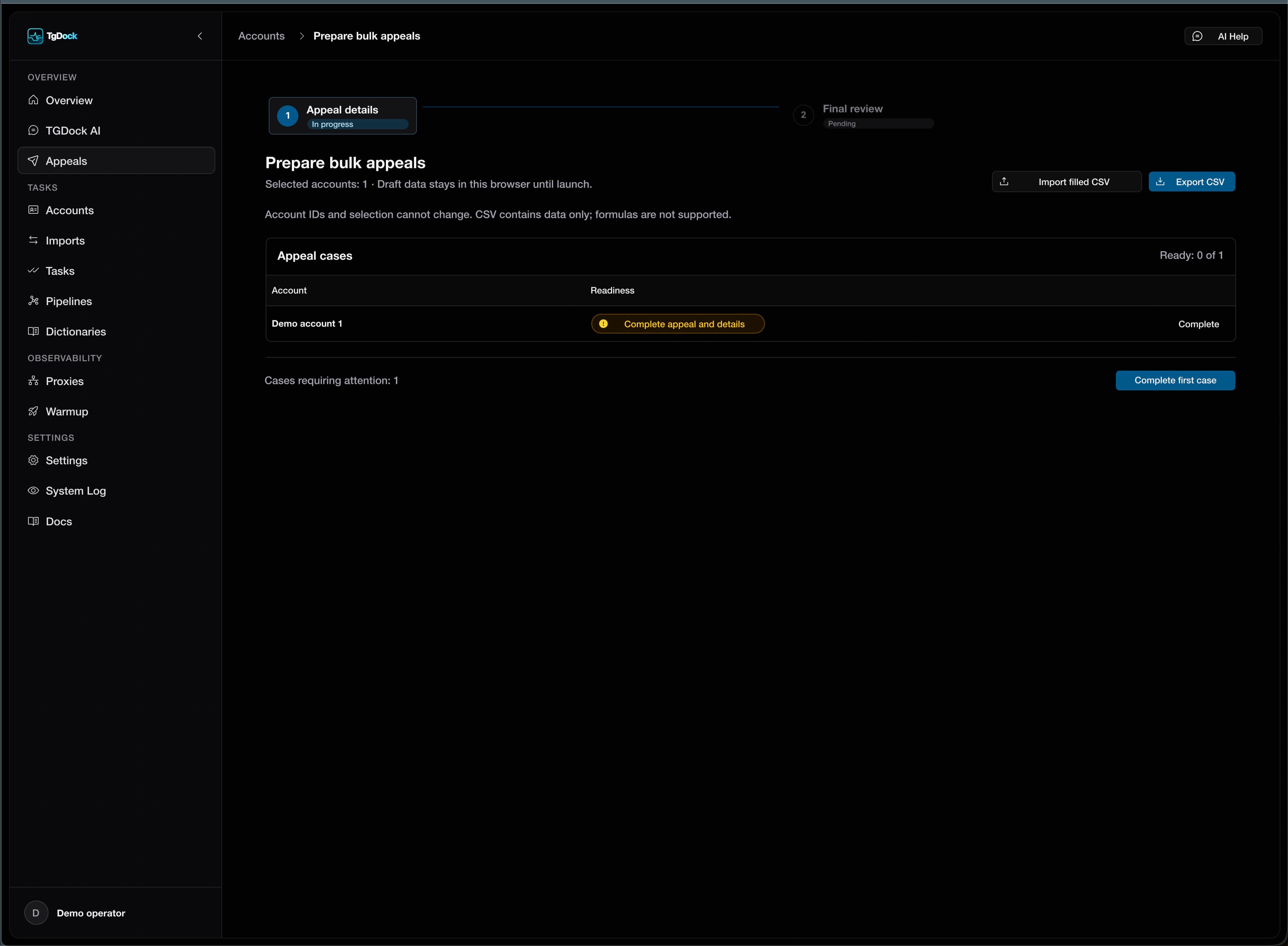
Select up to 10 accounts and choose Prepare appeals. Fill in each case individually, or use Export CSV and Import filled CSV to edit the draft. Keep the same account IDs and selection.
- Give each account its own appeal text and details. The unsubmitted draft lives in the open page. Export a CSV before reloading if you need to keep a copy.
- Complete every case, open Final review, confirm that the information is accurate, and start processing.
Track appeals and review cases that need attention
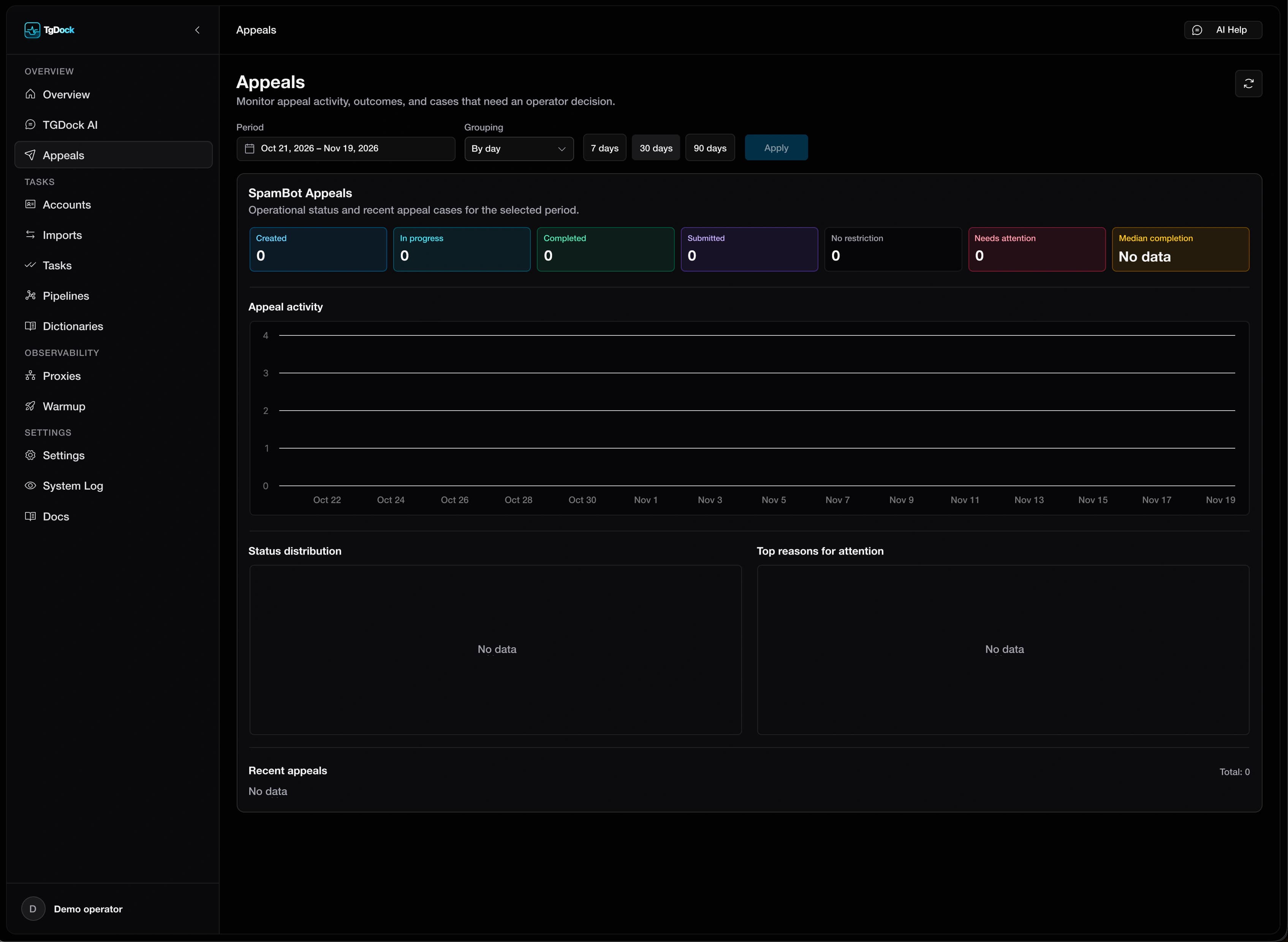
Open Appeals, choose a date range and grouping, and apply the filters. The dashboard shows activity, status distribution, reasons for attention and recent cases for that period.